
Team members across locations
Some of your team work at more than one clinic. Set each person up once, at their main location, then share them with the others.
Their home location
Add a team member on the Team page of the location where they mainly work. That's their home location. Their name, photo and welcome video are edited there, and only there. See Team members and welcome videos.
Share them with other locations
- Open their home location and go to Team.
- Open the person.
- Under Also works at, tick the other locations they work at.
- Press Save changes.
Only the group admin can choose where someone works. Sharing someone, or taking them off a location, is noted in the Activity log of each location involved.
At the other locations
They appear on that location's Team page with a Shared badge, and can be chosen when grading there.
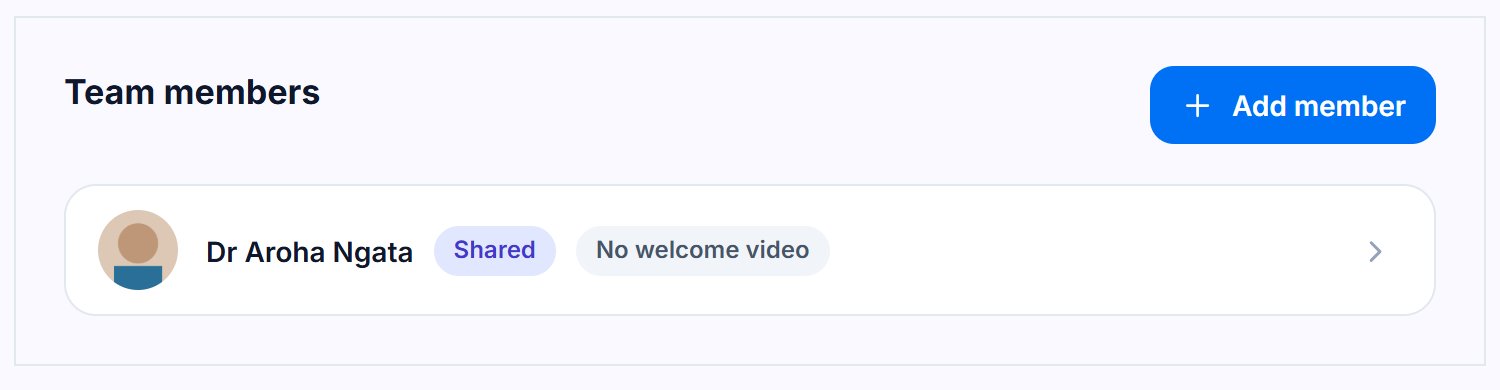
To change their details, open their home location. To stop them working somewhere, untick that location.
Message us from your dashboard and we’ll get back to you as soon as possible.