
How group accounts work
A group account runs several clinics from one SmileReply account. Each location manages its own patients, services and prices, while settings can be shared from the group or copied from one location to another in a few clicks.
Group View and your locations
You work in one of two places:
- Group View: for the whole group. Its menu has Overview, Group Settings, Social Proof and Locations.
- A location: one clinic, just as a single practice sees SmileReply, with its own Submissions, Booking requests, Services, Team, Messages and Practice Settings.
Move between them
Use the switcher at the top of the sidebar. Choose a location to open it, or Group View to go back to the whole group.
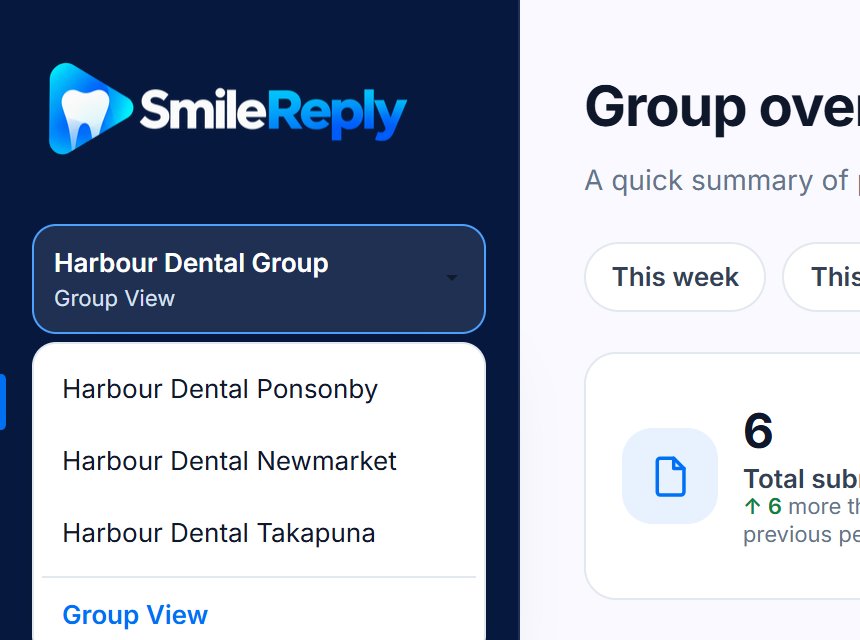
Who can do what
There are two kinds of login:
- The group admin sees Group View and every location. Only the admin can add locations, change group settings, copy setup between locations and choose where a team member works.
- A location's login is shared by that clinic's staff. It opens that one location only, with no switcher and no Group View.
Both can grade and send consults, change a setting for their location, and move a patient to another location.
You can also give people their own logins, as a Manager or Staff, at the locations you choose. See Personal logins.
What works per location
- Email alerts go to the location's contact email. Without one, they go to its own login, then to the group admin. Each alert names the clinic it's for.
- The Activity log in Group View shows every location's changes, with a column saying which. Inside a location, you see that location's changes and any changes to group settings.
- Contact support: each location has its own conversation with us, and Group View has another for the group.
- The setup guide in Group View shows each location's progress. Open a location to see what's left there.
Next steps
Still stuck?
Contact supportMessage us from your dashboard and we’ll get back to you as soon as possible.