
Personal logins (optional)
Most practices share one login, and that's all they need. If you'd rather each person signed in with their own email and password, you can give them a personal login. The shared login keeps working alongside them.
Personal logins are free, and you can add as many as you like.
Why use them
- Someone leaves: remove their login and they're signed out straight away. Nobody else needs a new password.
- You can see who did what: the Activity log shows each person's name instead of the shared login.
- Different access: a receptionist can reply to patients without being able to change your prices.
- People who work at several locations in a group sign in once and switch between their locations.
Who can do what
- Manager: everything at their locations, including settings, and inviting people.
- Staff: patient work only. They grade and send consultations, reply to messages, and handle booking requests and outcomes. They don't see Services, Team (including its Logins tab), Social Proof or Practice Settings, and can't delete patients or export data.
- Group admin (groups only): everything, at every location.
Invite someone
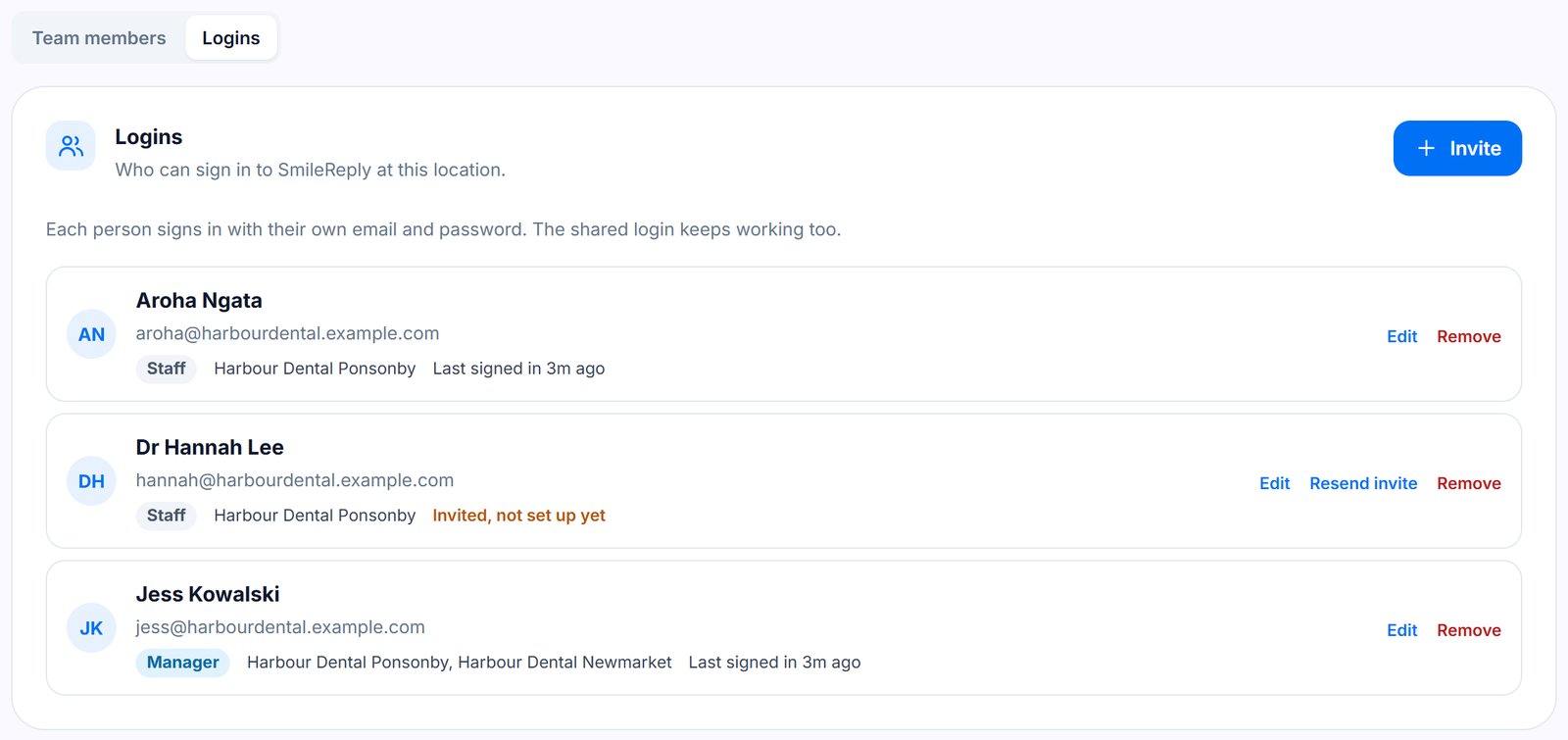
- Go to Team and open the Logins tab.
- Press Invite.
- Enter their name and email, and choose Manager or Staff.
- In a group, tick the locations they work at.
- Optional: under Their team member profile, choose them from your team members. When they grade a patient, they're picked automatically.
- Press Send invite.
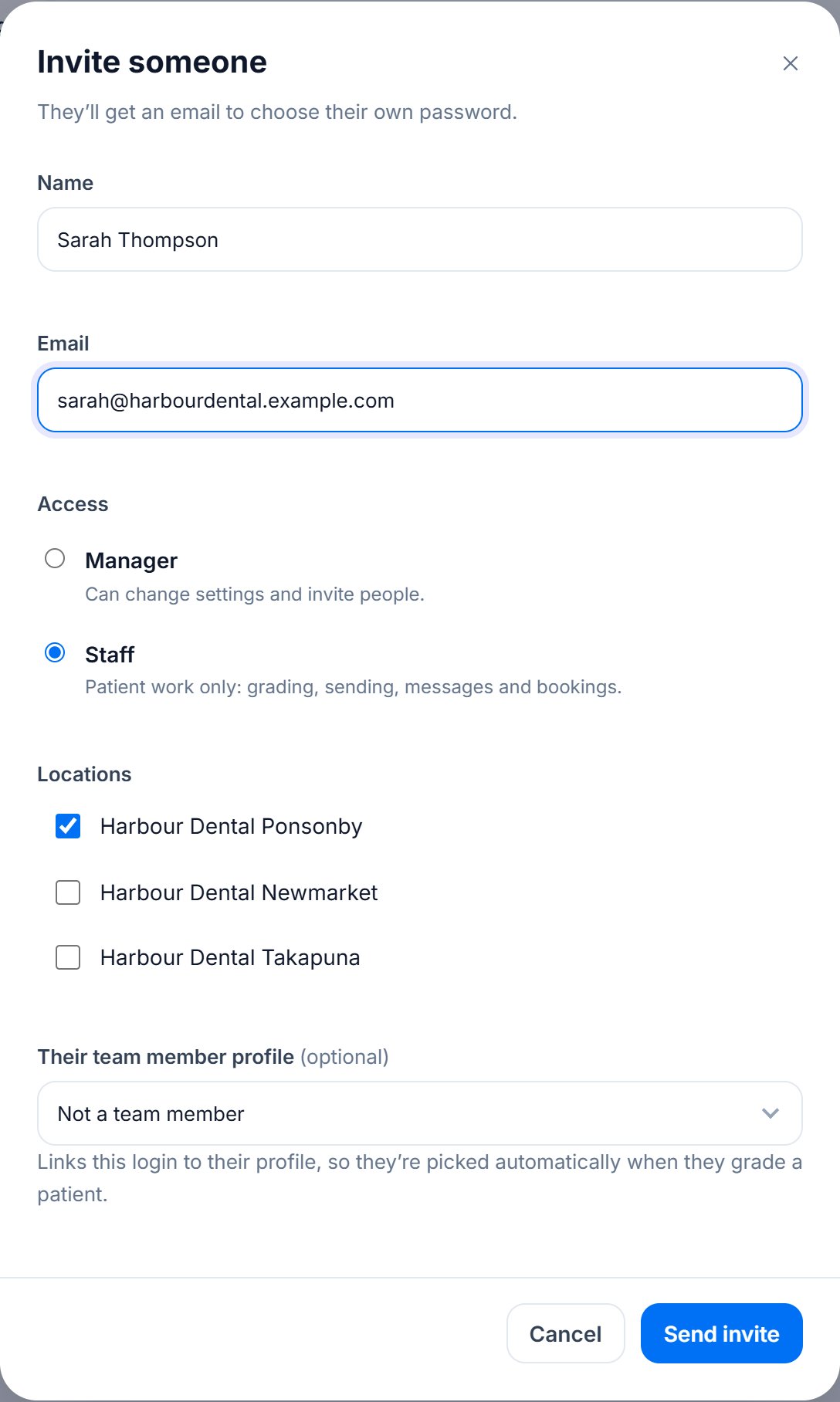
They get an email to choose their own password. Until they do, their row says Invited, not set up yet, and you can press Resend invite.
From a team member
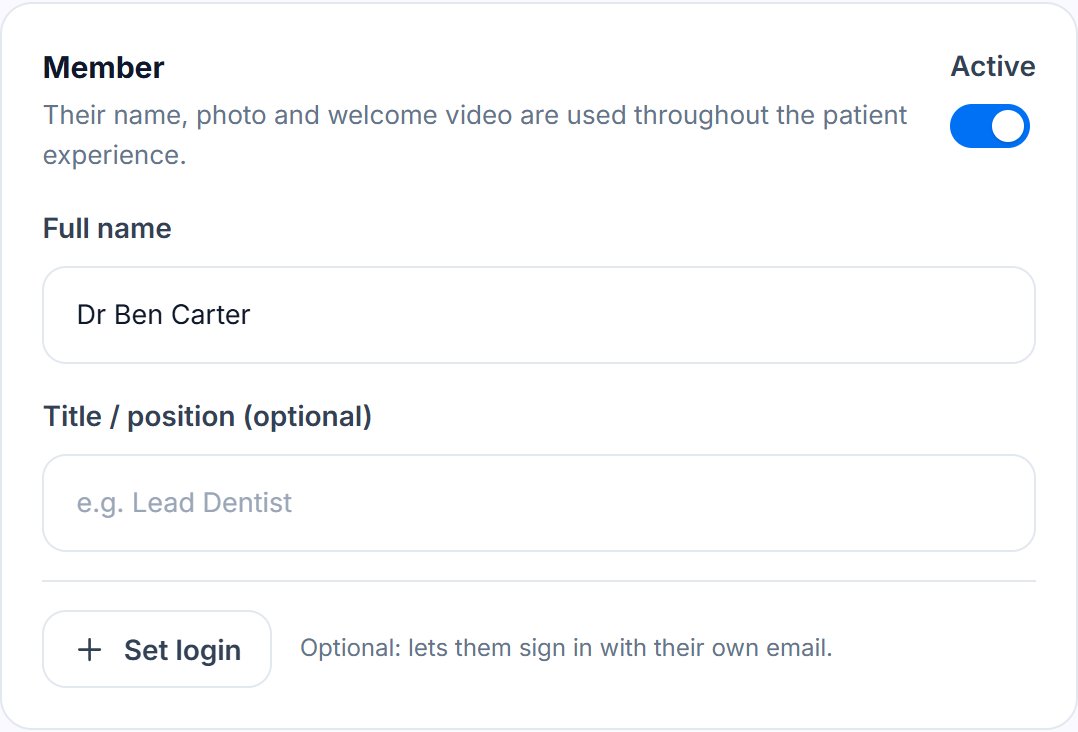
Open a team member on the Team page and press Set login. Their name is filled in, the login is linked to their profile, and their locations are ticked. Add their email and send.
Change or remove a login
On the Logins tab, press Edit to change someone's access or locations. Changes apply straight away, without signing them out.
Press Remove when someone leaves. They're signed out everywhere at once and can't sign in again. Anything they did stays in the Activity log, under their name. If they come back, invite them again with the same email.
Two-step sign-in
Anyone with a personal login can add a code from their phone after their password. Go to Account in the menu at the top right, find Two-step sign-in, type your password and press Set it up. Scan the code with an authenticator app (Google Authenticator, Microsoft Authenticator, 1Password and the like), then enter the 6-digit code it shows.
Lost your phone? A Manager or group admin presses Reset two-step on your row in Logins. You're signed out, then sign in with just your password and can set it up again.
Two-step isn't offered on the shared login: one phone can't hold the code for a whole front desk.
Turn off the shared login
Once everyone has their own login, a Manager or group admin can turn the shared login off. On the Logins tab, press Turn off on the shared login's row. Everyone using it is signed out straight away, and from then on each person signs in with their own login.
You need at least one Manager who has set up their login first, so someone can still change your settings. Press Turn on to bring the shared login back, with the same password.
In a group
Group Settings has a Logins card listing everyone in the group, with their locations. Group admins can invite people to any location, and add other group admins.
Someone with more than one location gets the switcher at the top of the sidebar, showing just their locations.
Message us from your dashboard and we’ll get back to you as soon as possible.