
Copying setup between locations
Set up services and payment options at one location, then copy them to the others instead of entering them again. Copy setup between locations is on the Locations page, in Group View.
Copy
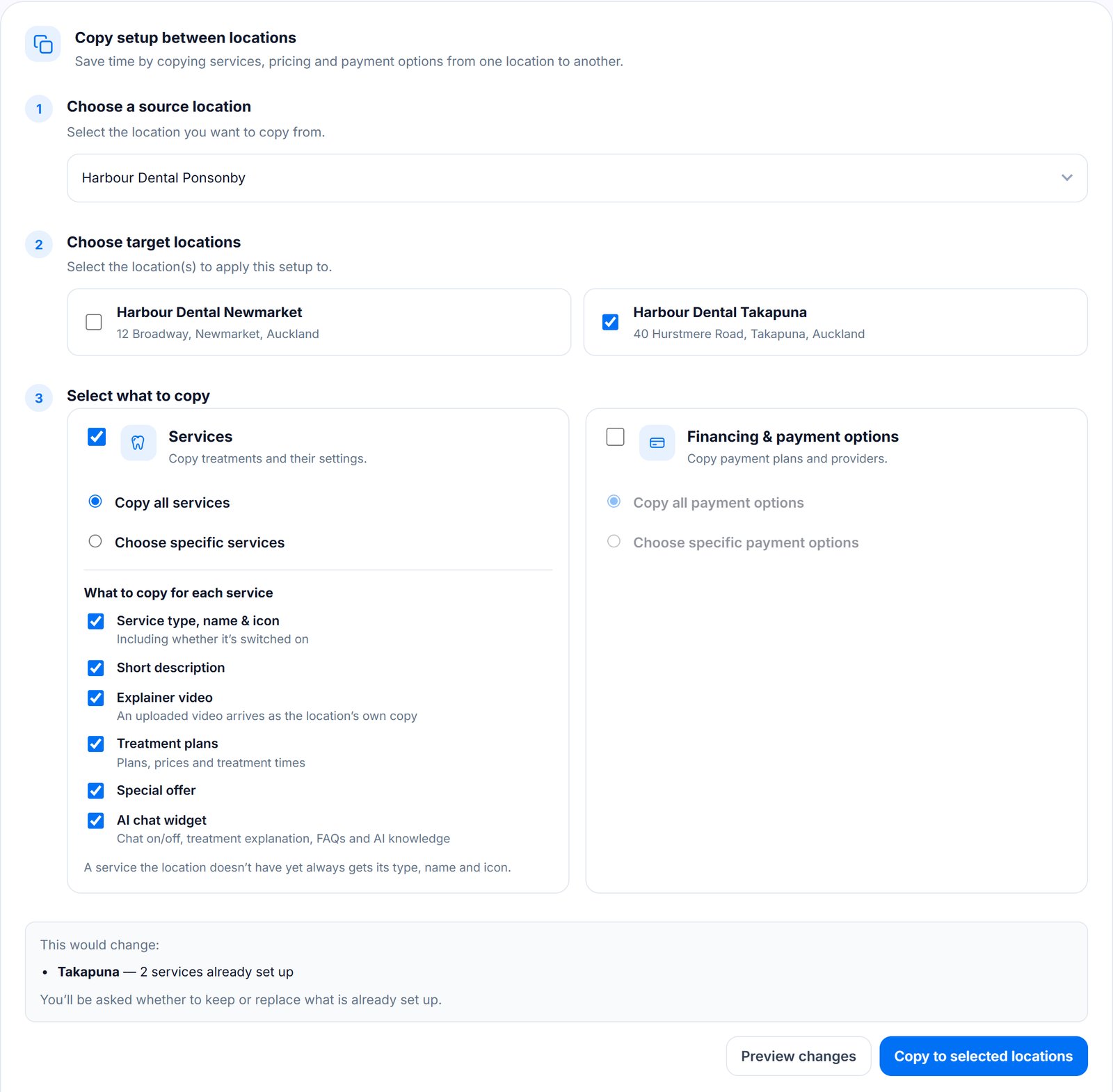
- Choose a source location, the one that's set up.
- Choose target locations to copy into. You can pick several.
- Select what to copy: Services and Financing & payment options, each all of them or just the ones you choose.
- Under What to copy for each service, untick anything you don't want copied.
- Press Preview changes to see what would change at each location.
- Press Copy to selected locations.
What each service can bring
- Service type, name & icon, and whether it's switched on.
- Short description.
- Explainer video. An uploaded video arrives as the location's own copy.
- Treatment plans: plans, prices and treatment times.
- Special offer.
- AI chat widget: whether it's on, plus the treatment explanation, FAQs and AI knowledge.
Services a location already has
Nothing is deleted. A service the location doesn't have yet is added. Services are matched by which preset service they are, or by name for custom services, so Invisalign at one location matches Clear Aligners at another.
If a location already has some of what you're copying, you're asked once:
- Keep the existing ones to add only what's new.
- Replace them to update what's there to match the source.
If a plan uses a payment option the location doesn't have, the preview names it and offers to add it to the copy, and Copy to selected locations asks before going ahead. If the location has the option but it's switched off, the plan is still linked to it, and the result says patients won't see it until it's switched on.
Copy history and Undo
Every copy is listed under Copy history. Press the arrow on an entry to see what happened at each location.
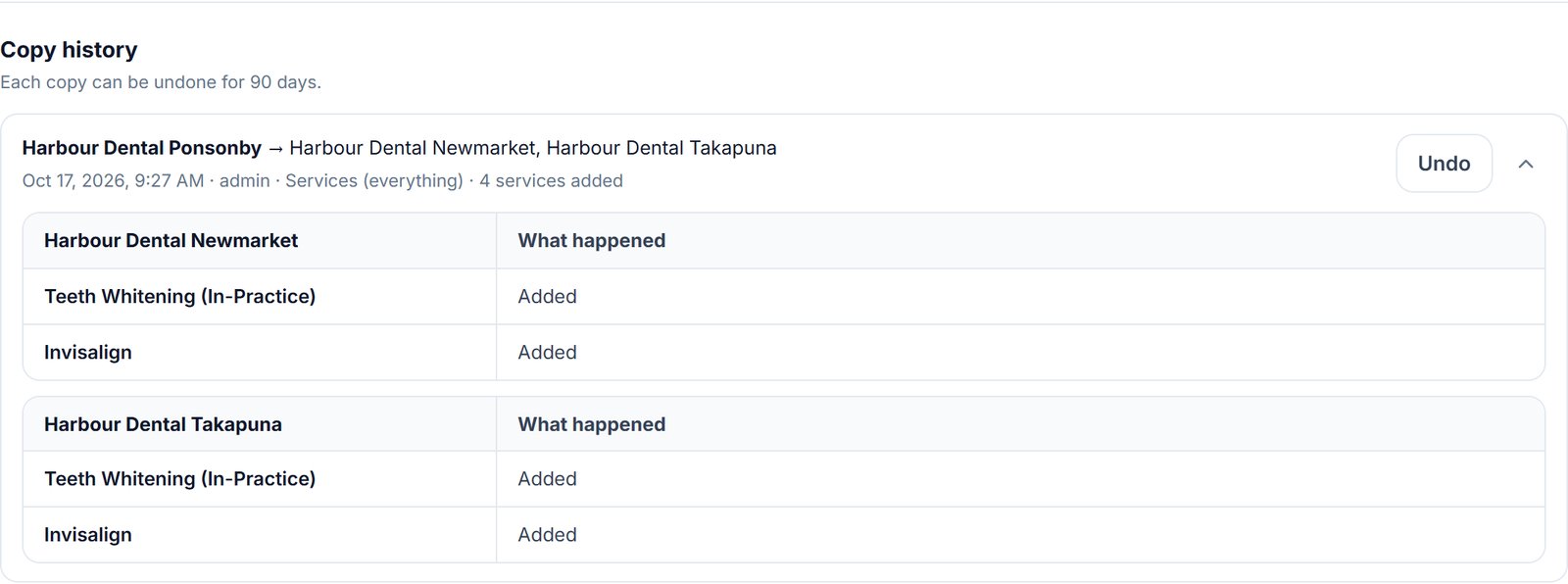
You can undo a copy for 90 days. Press Undo to put back what each location had before. If something was changed after the copy, you choose whether to keep the newer version. A copied service the location has already used, in a patient's grading or in its before and after photos, is kept too, and the result tells you which.
Each copy also appears in the Activity log of every location it changed.
Message us from your dashboard and we’ll get back to you as soon as possible.