
Moving a patient to another location
If a patient chose the wrong clinic, or another location suits them better, move them. Their photos, messages, notes and grading go with them, and the patient isn't contacted.
Move a patient
- Open the patient from Submissions.
- Press Edit patient at the top right of their grading screen, then Move location.
- Choose where under Move to, and add a Reason if you like.
- Check What happens, then press Move patient.
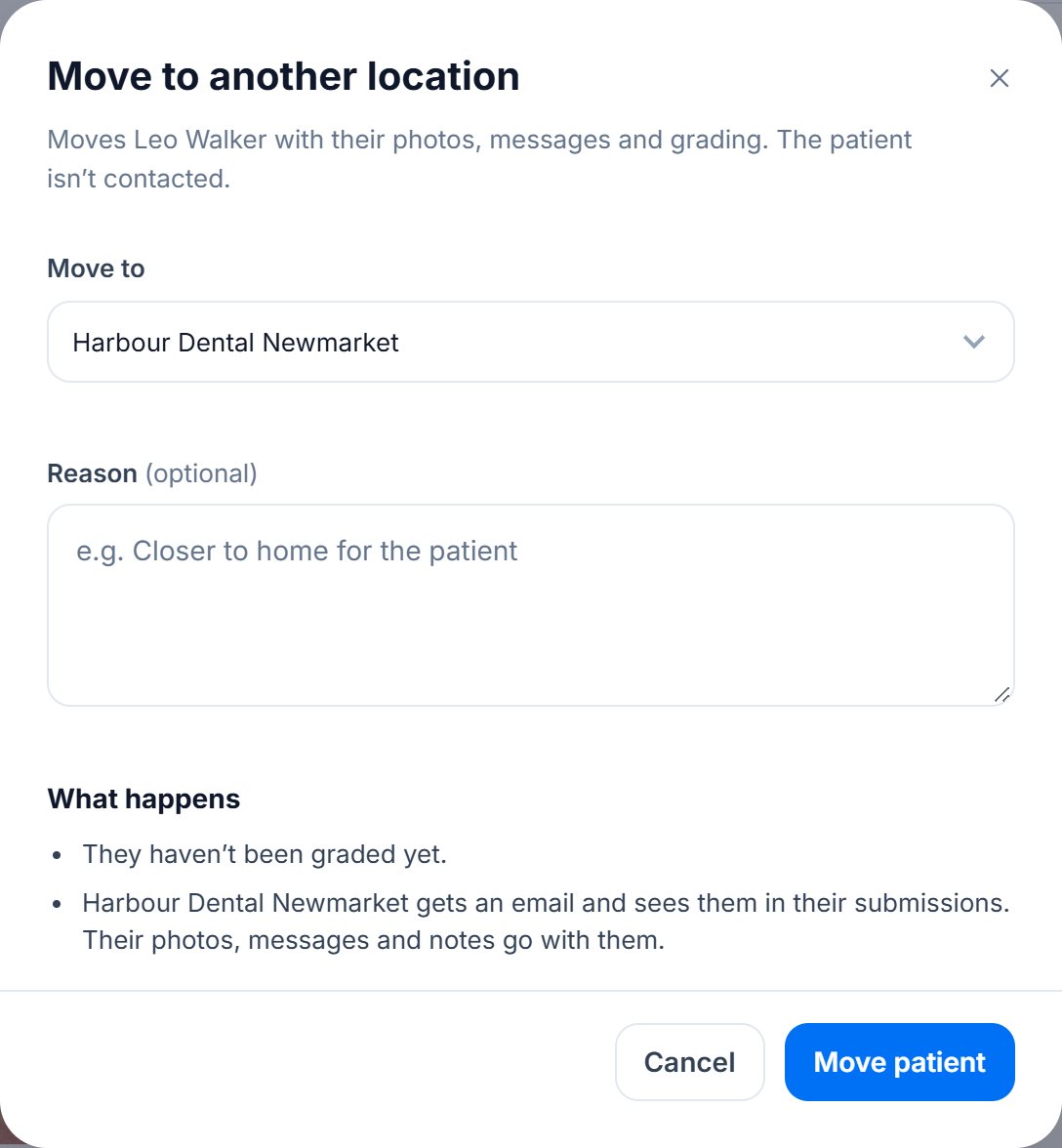
Anyone signed in at the location, or the group admin, can move a patient to any open location in the group.
A patient who has been archived can't be moved: their record of care stays with the location that treated them. If their video or before and after is still being made, wait a few minutes and try again.
What happens
- The new location gets an email, and the patient appears in its submissions.
- Their grading is adapted to the new location. A treatment it doesn't offer is removed. A team member who doesn't work there is cleared, so choose who's grading.
- If their consultation was already sent, the patient's link keeps working and shows it as it was, with the old location's name and logo. When you're ready, press Update at the new location to bring it up to date with its name, logo, prices and booking link.
Still stuck?
Contact supportMessage us from your dashboard and we’ll get back to you as soon as possible.