
Previewing, sending and updating a consult
Preview before you send
Press Preview patient portal at the bottom of the grading screen. It opens the patient portal in a new tab, exactly as the patient will see it.

- It saves your grading and starts preparing the video, so give it a few minutes.
- It doesn't notify the patient or mark the consult as sent.
Send
Press Send to patient, next to Save as draft at the bottom of the grading screen. You're taken back to Submissions, where the patient shows as Preparing, then Sent.
For a video consult, the patient's text and email go out once the video is ready, usually within about 5 minutes.
Changing a consult you've already sent
Open the patient and make your changes. The buttons at the bottom are now:

- Save changes (not sent): keeps your edits without the patient seeing them.
- Update: changes the consult the patient already has.
When you press Update, their patient portal changes straight away. If you changed anything in the video (treatments, plan, price, findings or delivery method), the video is made again and shows as being prepared for a few minutes.
Version notes
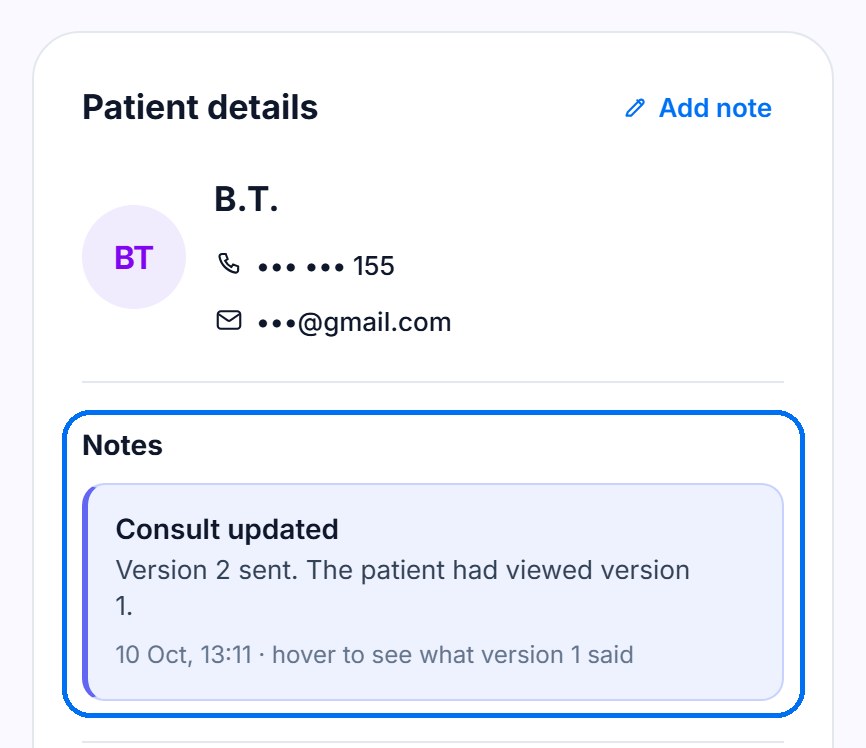
Each time the video is updated, a note is added to the patient, for example Version 2 sent. The patient had viewed version 1.
You'll find it under Notes in Patient details, on the left of the grading screen. The Notes section only appears once the patient has a note, so the first one shows after you update a consult you've already sent.
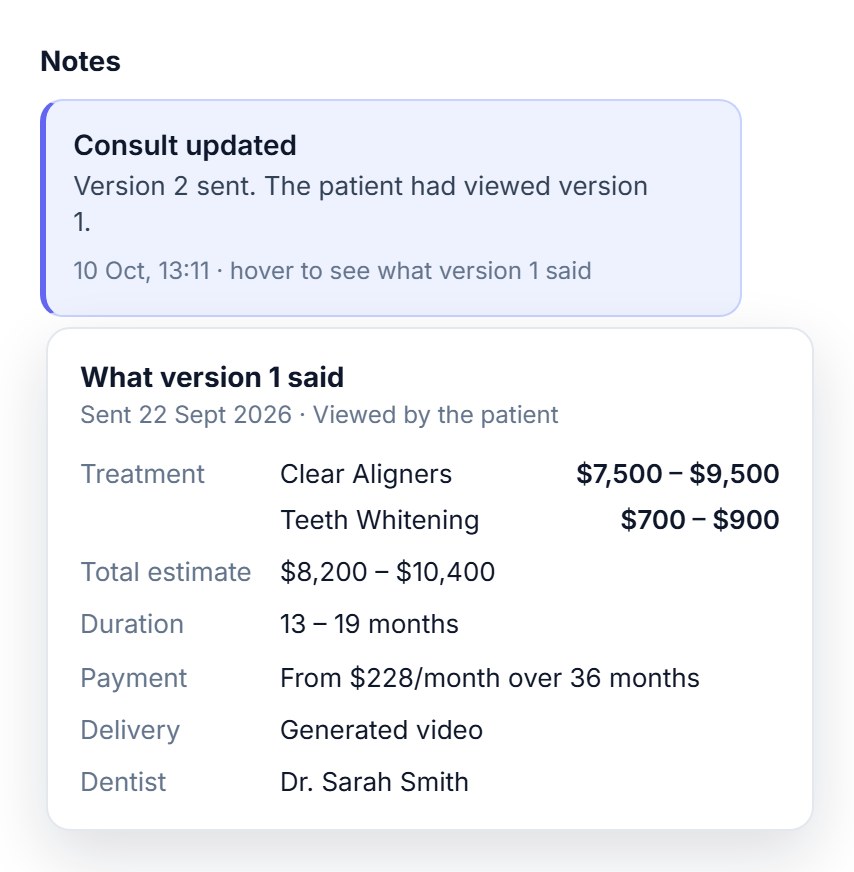
Hover over a note to see what that version said: treatment, estimate, duration, payment and dentist. These notes can't be deleted, so you always have a record of what the patient was told.
Reminders
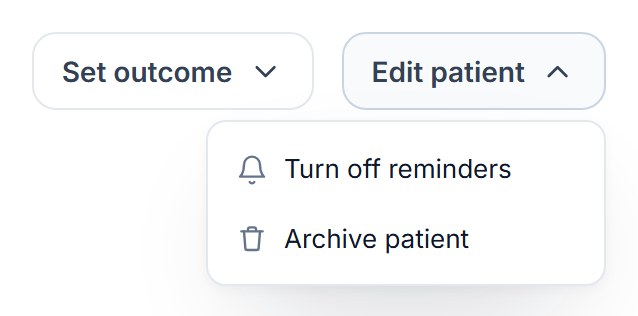
Patients who haven't watched their consultation get up to three reminder emails. To stop them for one patient, go to Edit patient and choose Turn off reminders. A Reminders off badge appears at the top.
Archiving and deleting
Both are in the Edit patient menu at the top right of the patient.
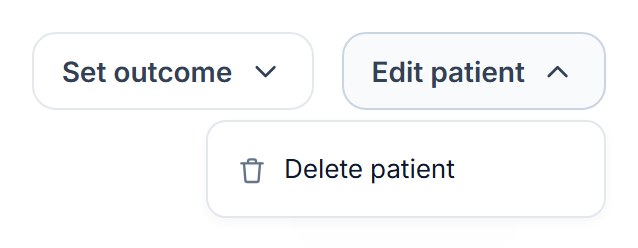
- Not sent yet: Edit patient → Delete patient. Choose Delete their details (keeps your stats) or Delete everything.
- Already sent: you can only archive. Edit patient → Archive patient stops all contact and removes their access to the consultation. Their record stays in Patient records for the legal period. See Patient data.
Made a mistake? You can undo either from the Activity log for 7 days.
Message us from your dashboard and we’ll get back to you as soon as possible.