
Grading a submission
Open a patient from Submissions to grade them.
1. Who is completing this grading?
Choose the team member the patient will hear from. Only active team members with a profile photo are listed. It starts blank on purpose, so nobody sends under the wrong name.
2. Recommended treatment
Choose up to four treatments. The order you pick them is the order they're spoken about, so choose the main one first.
Custom treatment: for anything not in your services. Type its name and choose an icon. It has no plans or before and after, so set its duration and price yourself.
Present as a Smile Makeover: appears when you choose two or more. It presents them as one combined makeover rather than separate treatments.

Lock in treatments: creates the patient's before and after now, so you can check it before you send. It takes 1 to 2 minutes.

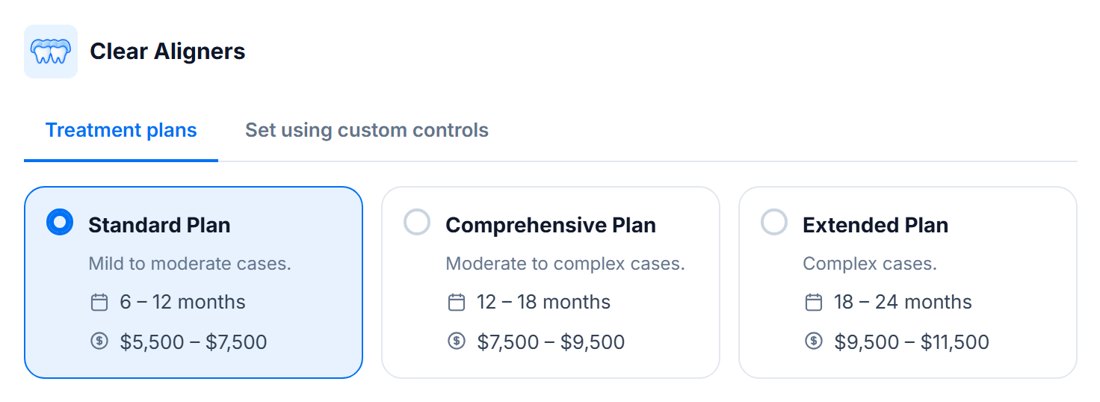
3. Choose a treatment plan
For each treatment, pick one of its plans, or switch to Set using custom controls to set the duration, price and payment options yourself.
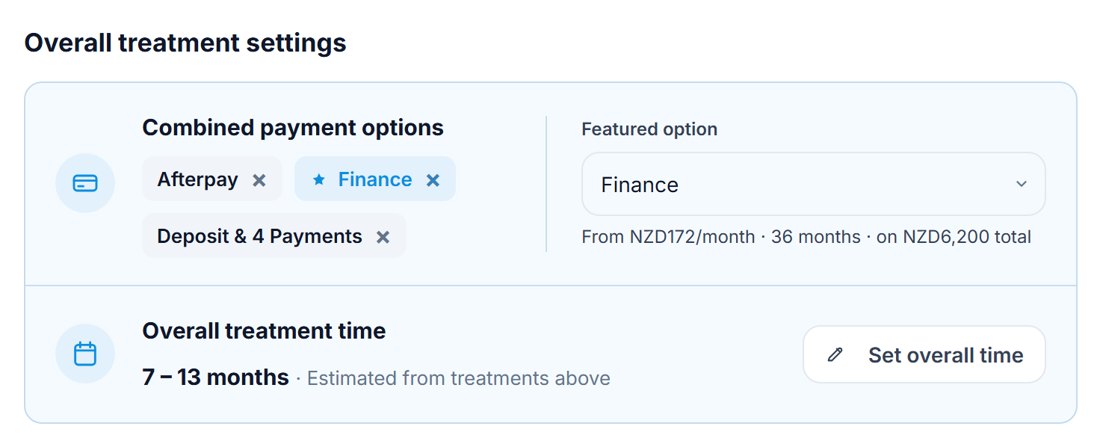
With two or more treatments, an Overall treatment settings card lets you set the total time and the payment options to show. The patient sees the combined price of every treatment.
4. Optional special offer
If the treatment has an offer in Services, it's added automatically. Change or remove it here for this patient only.
5. Delivery method
Choose how this patient gets their consultation.
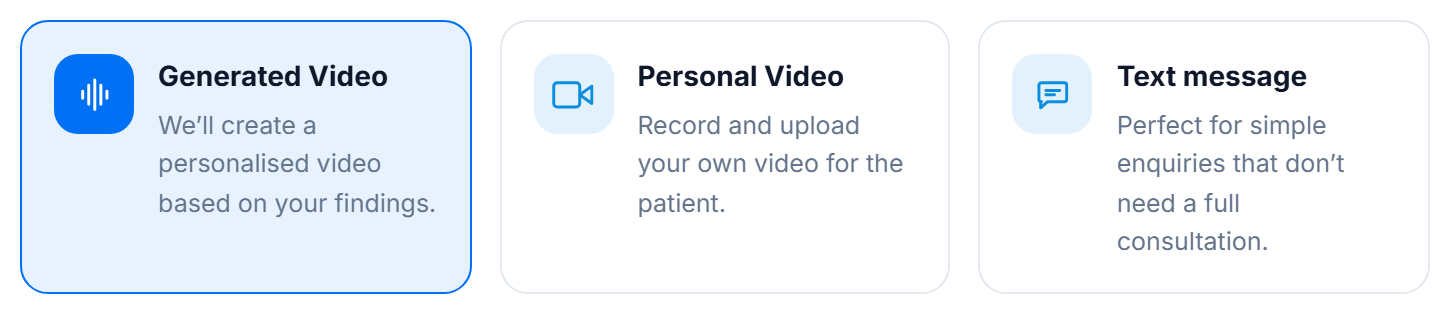
- Generated Video: we turn your findings into a personalised, narrated video, opened by your team member's welcome video. Use it when you're short on time, have a lot of submissions to get through, or for patients who seem less likely to go ahead.
- Personal Video: you record or upload your own video, and we add subtitles and the treatment explainer videos at the end. It's the best way to build rapport, so use it whenever you have the time.
- Text message: you write a short reply that's sent by text and email, with no video or patient portal. Use it for simple questions, or when a full consultation isn't the right fit yet.
For more detail, see Generated video vs personal video.
To show patients where each finding is on their smile, see Using the teeth map.
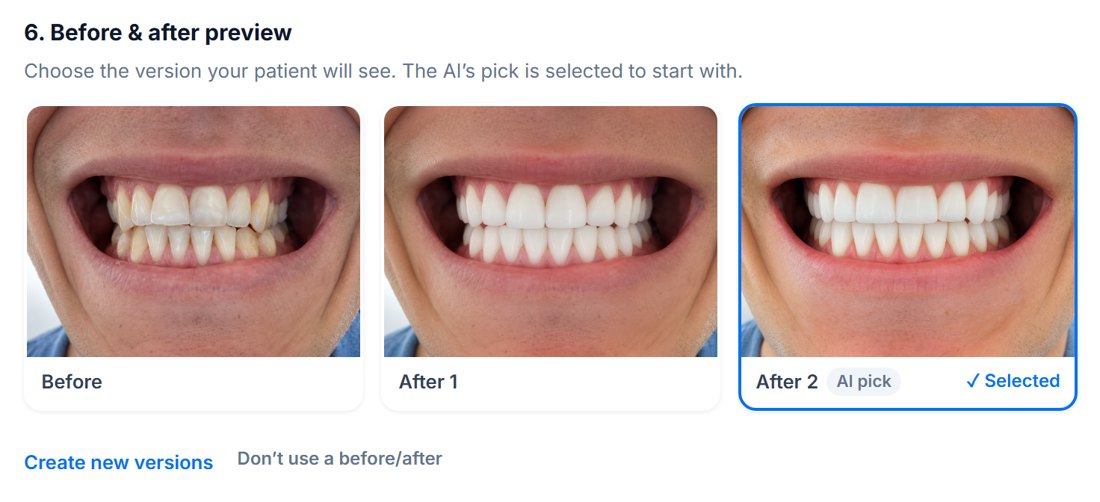
6. Before & after preview
Choose which version your patient sees. The AI's pick is selected to start with. You can create new versions, or choose Don't use a before/after.
Finishing up
- Save as draft keeps your work without sending.
- Preview patient portal shows exactly what the patient will see. See Previewing, sending and updating.
- Send to patient sends it.
If something's missing, the message above the buttons tells you what, for example Select the team member completing this grading before sending.
Message us from your dashboard and we’ll get back to you as soon as possible.